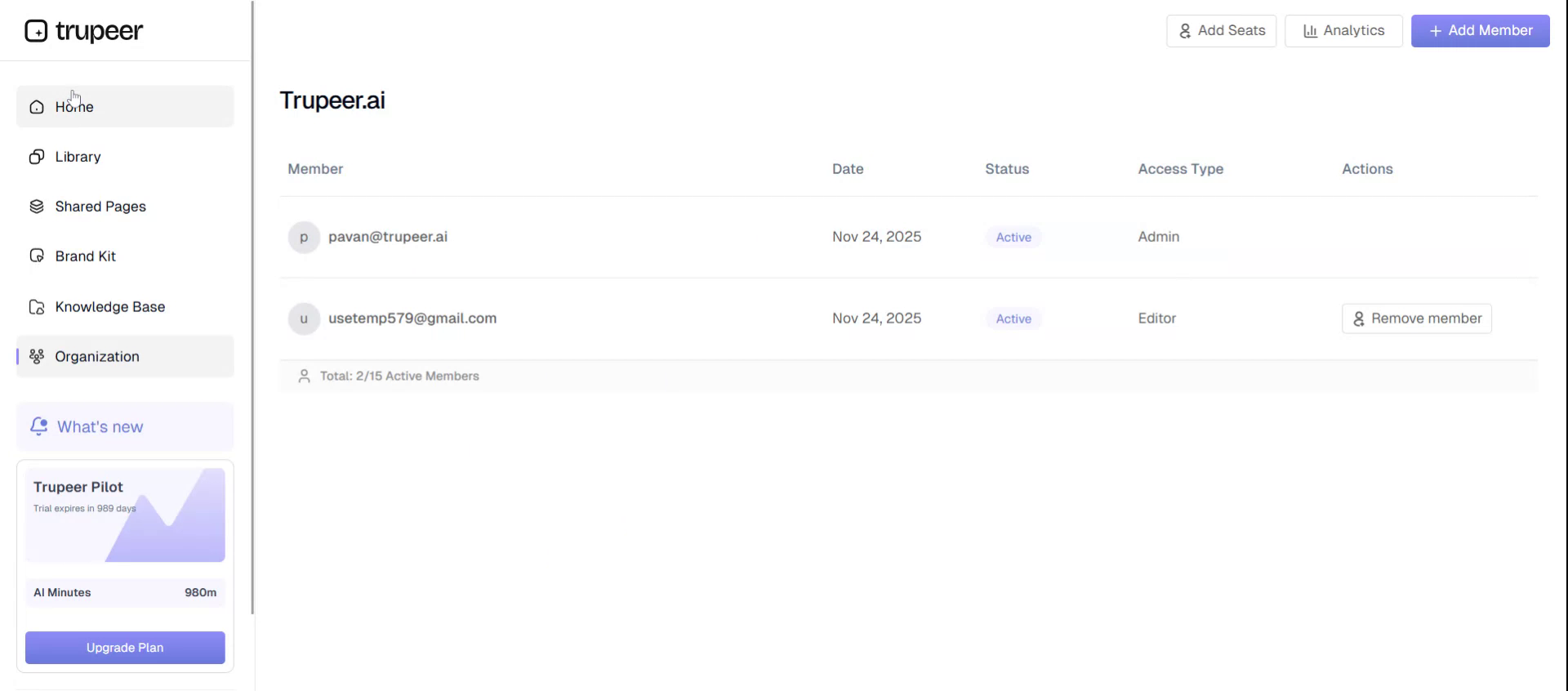
Exploring Key Features in Troopier#
This document provides a concise overview of the main sections and features available in Troopier, including how to access your videos, manage share pages, customize branding, and work with documentation and knowledge bases.
Step 1: Explore the Homepage#
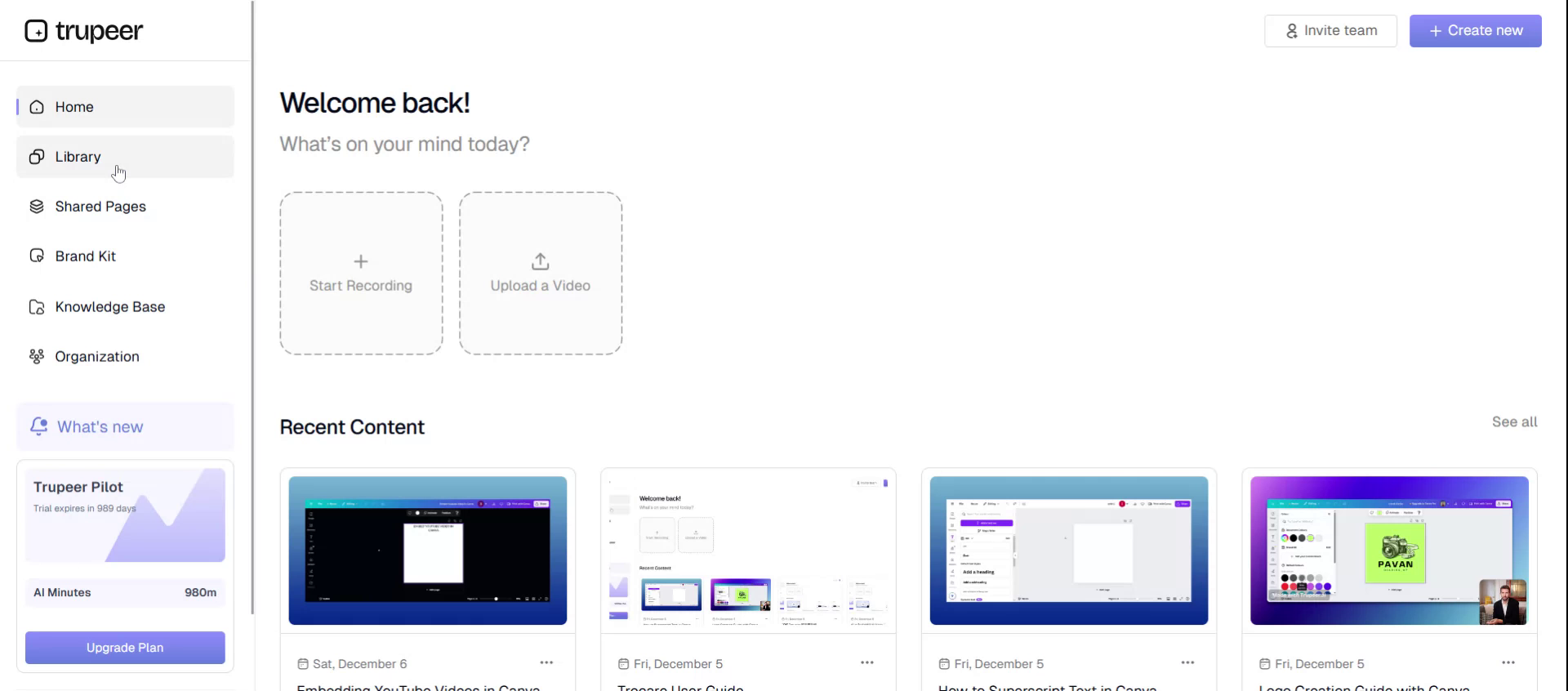
On the Troopier homepage, you can see all the videos you have created so far. From here, you can also create a new video either by recording directly within Troopier or by uploading an existing video.
Step 2: View Your Video Library#
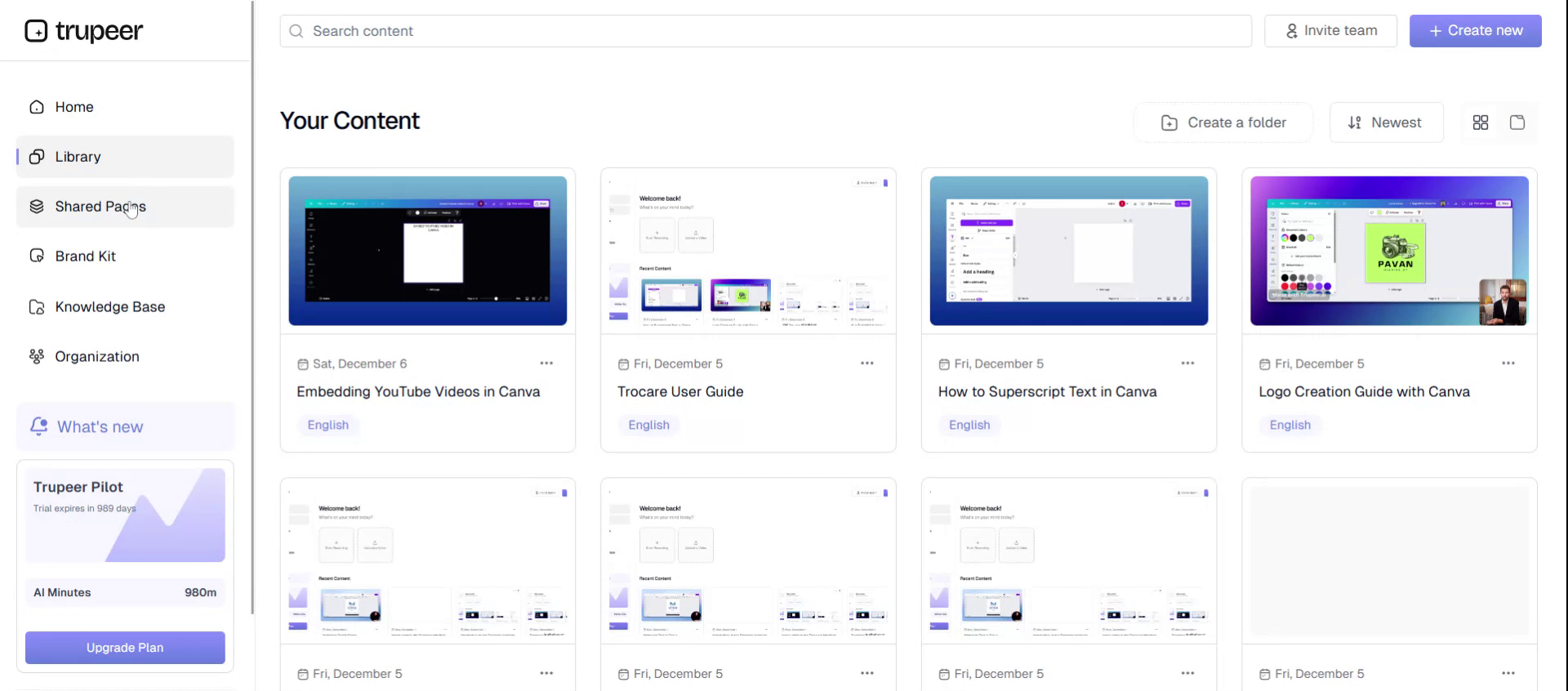
Navigate to the Library page to see all the videos you have previously created. This section helps you manage and revisit your existing video content.
Here, you can browse through your full collection of past videos.
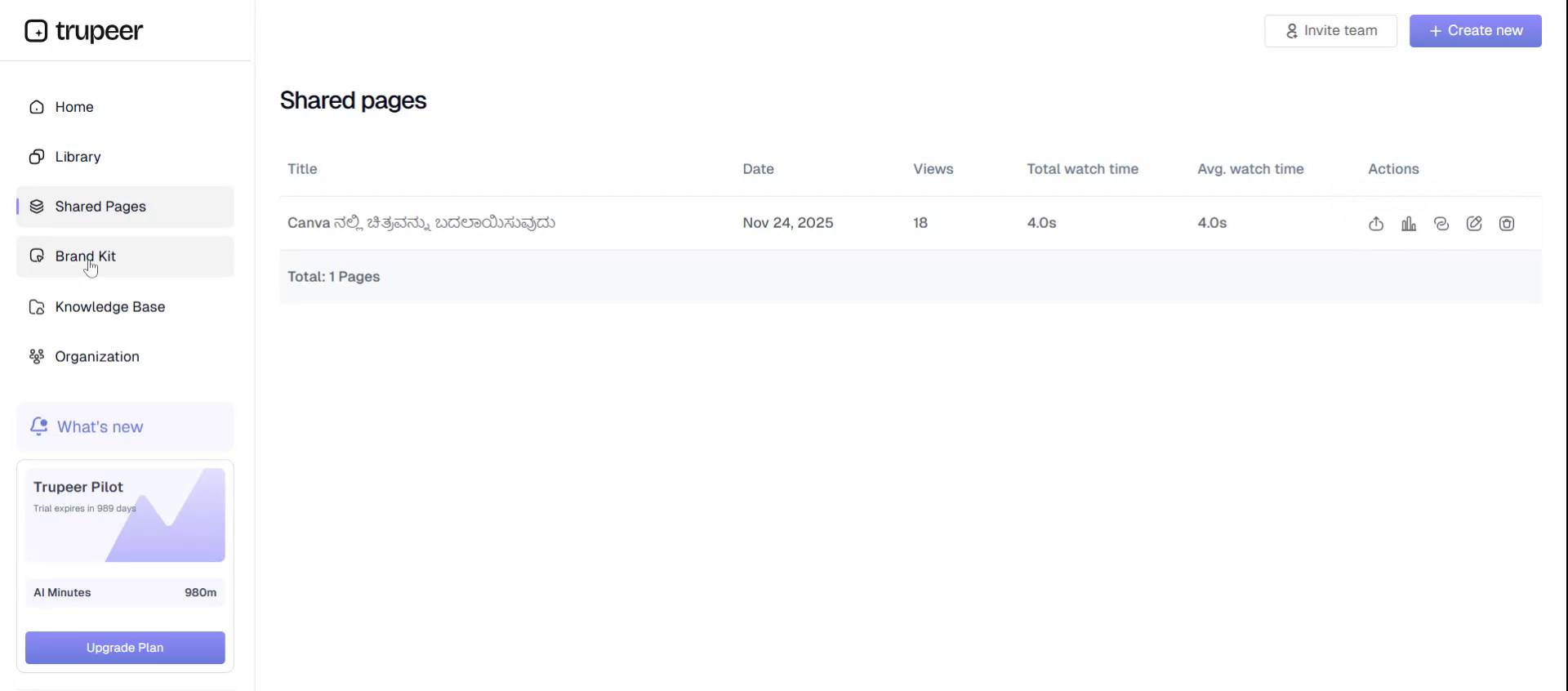
Step 3: Manage Your Share Pages#
Go to the Share page to see all the share pages you have created for your videos. From this page, you can:
- Delete an existing share page
- Visit (preview) a share page
- Edit a share page’s details and settings
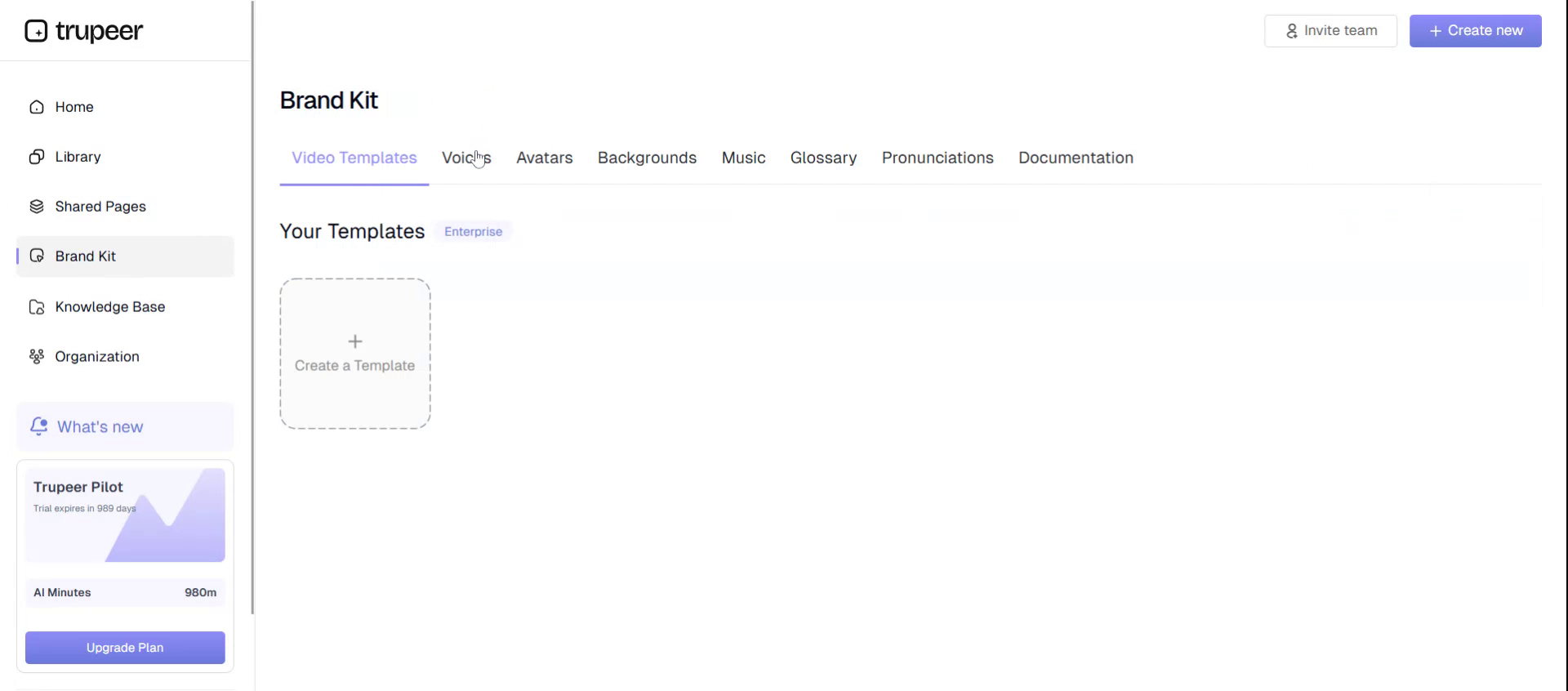
Step 4: Customize Your Brand Kit#
Open the Brand Kit section to personalize the look and feel of your videos.
Here, you can:
- Add and manage your own voices
- Add avatars, including
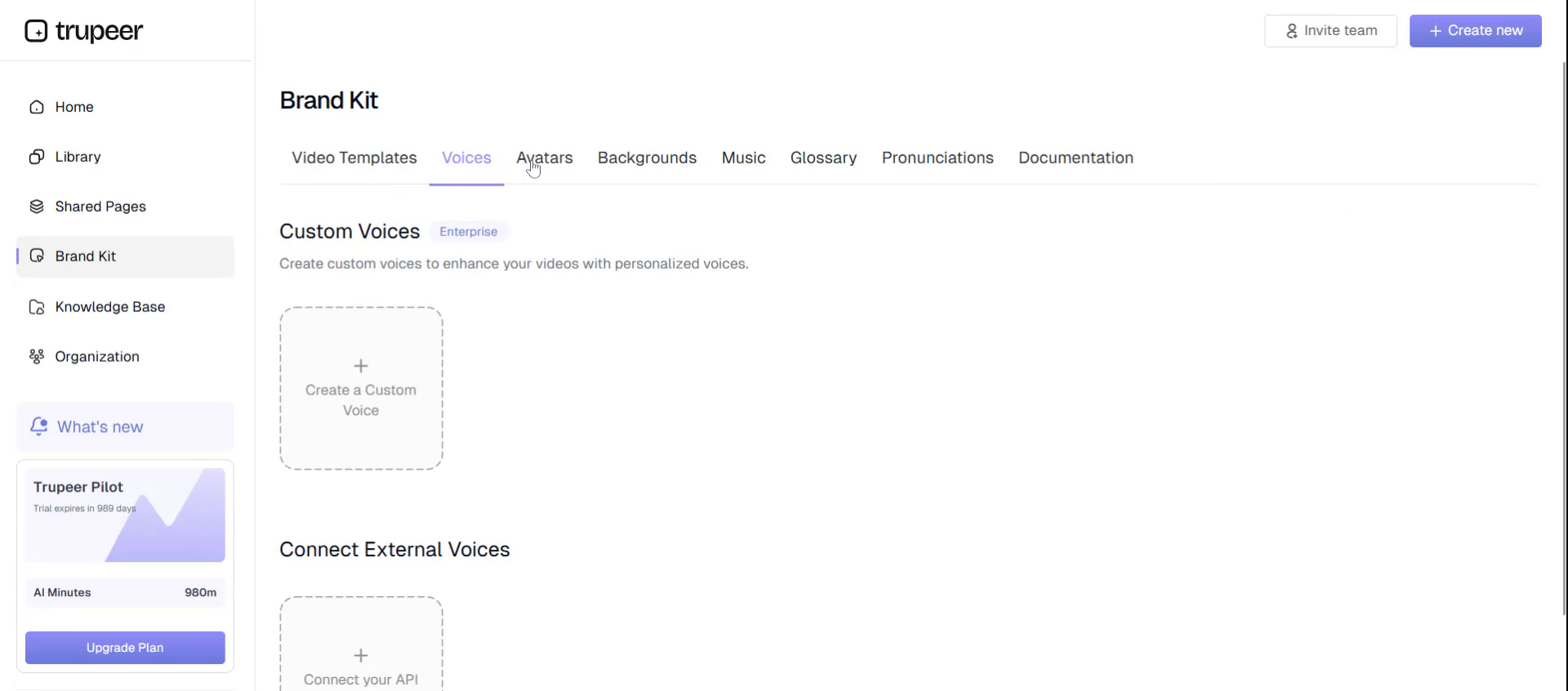
- Custom avatars
- Custom
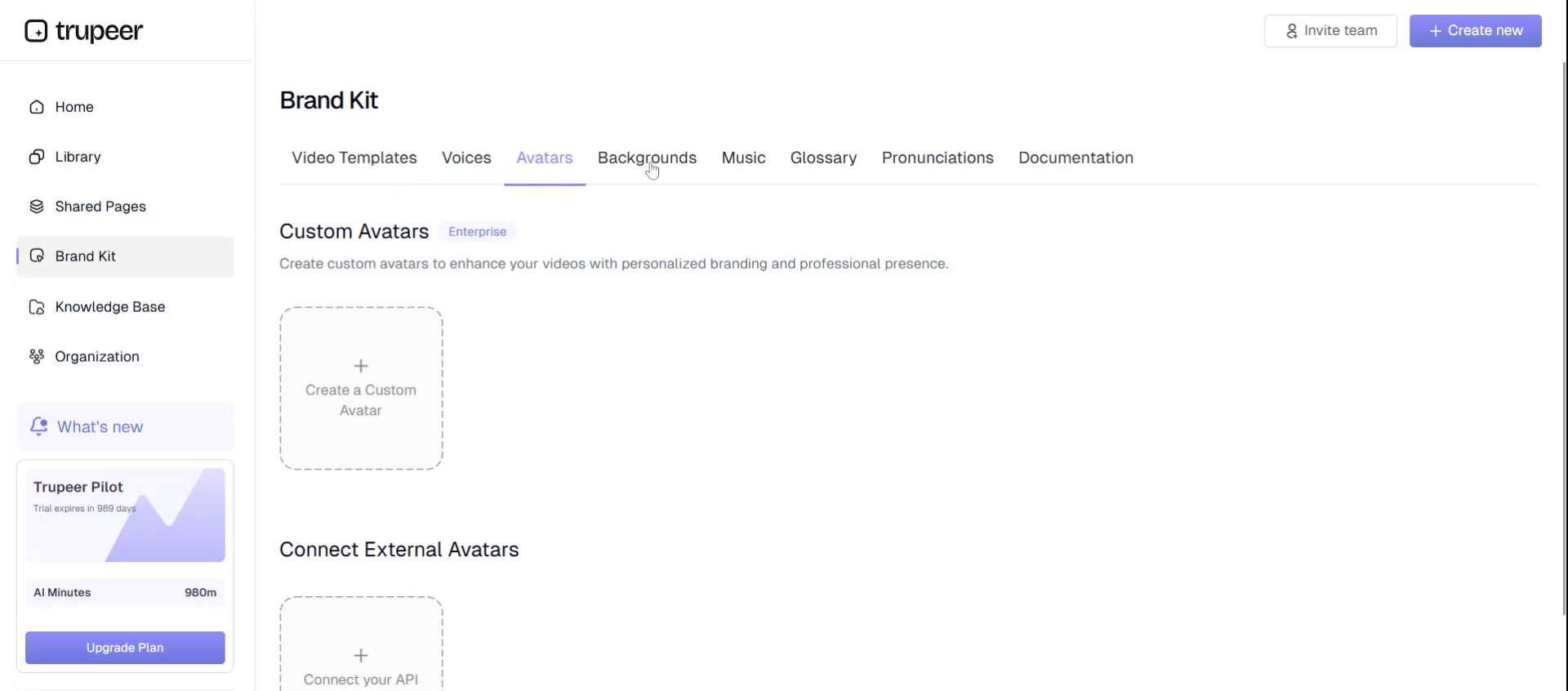
- Backgrounds for your videos
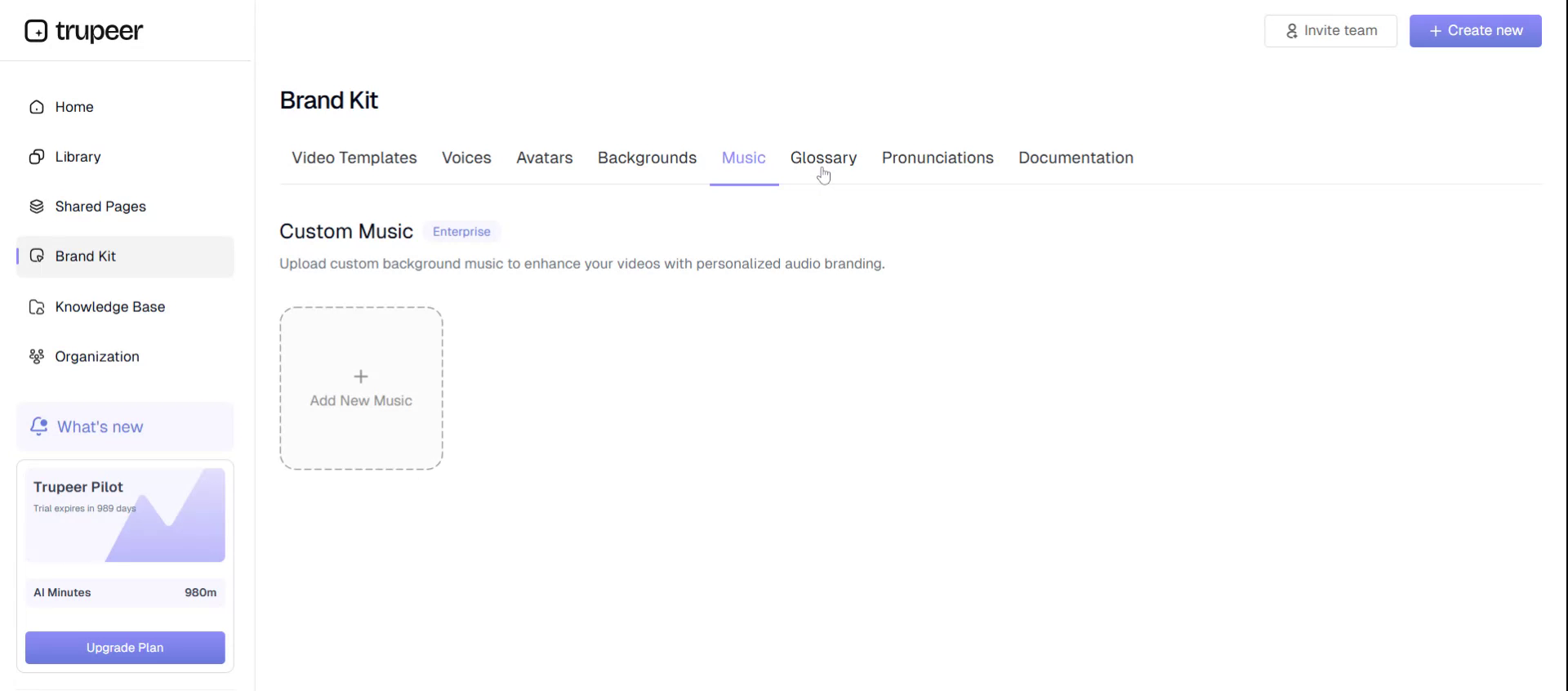
- Music tracks for your videos

You can also upload and add your own custom music here.
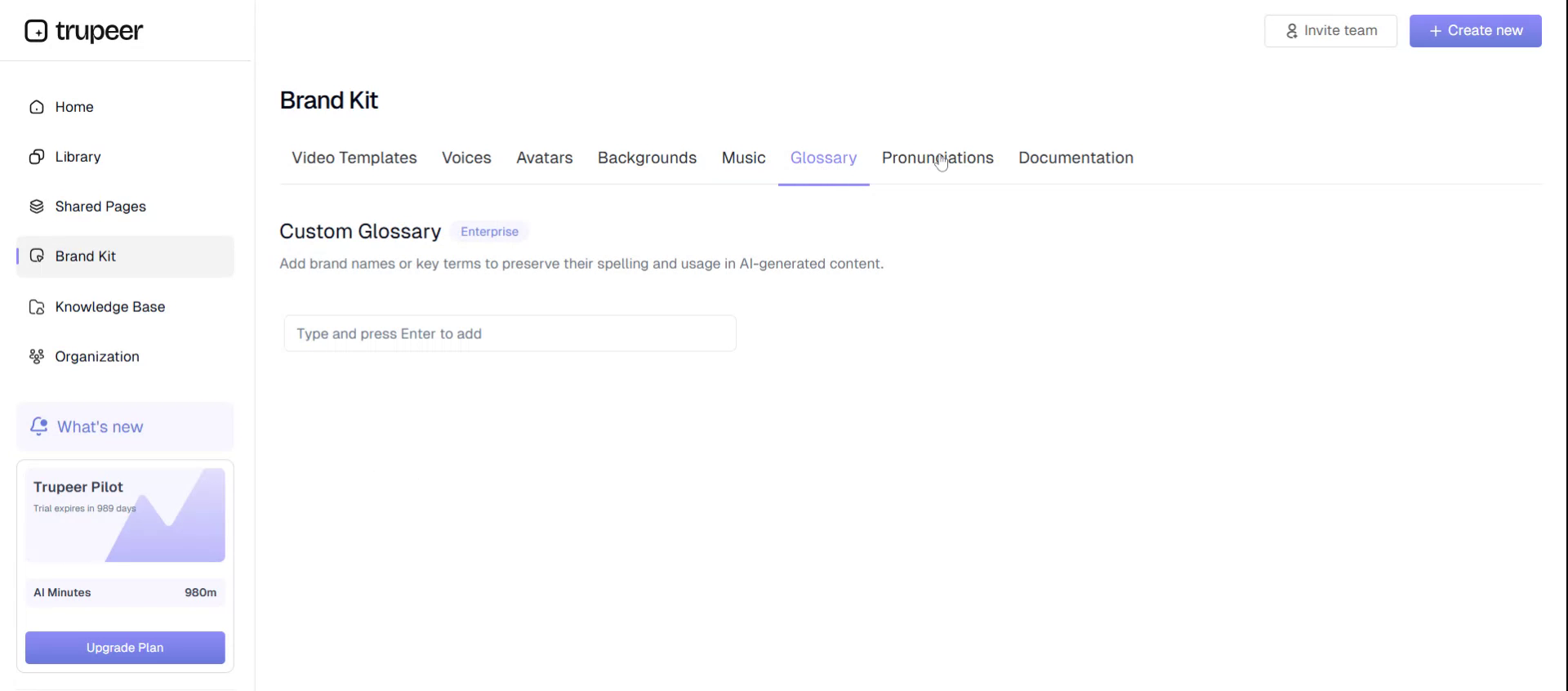
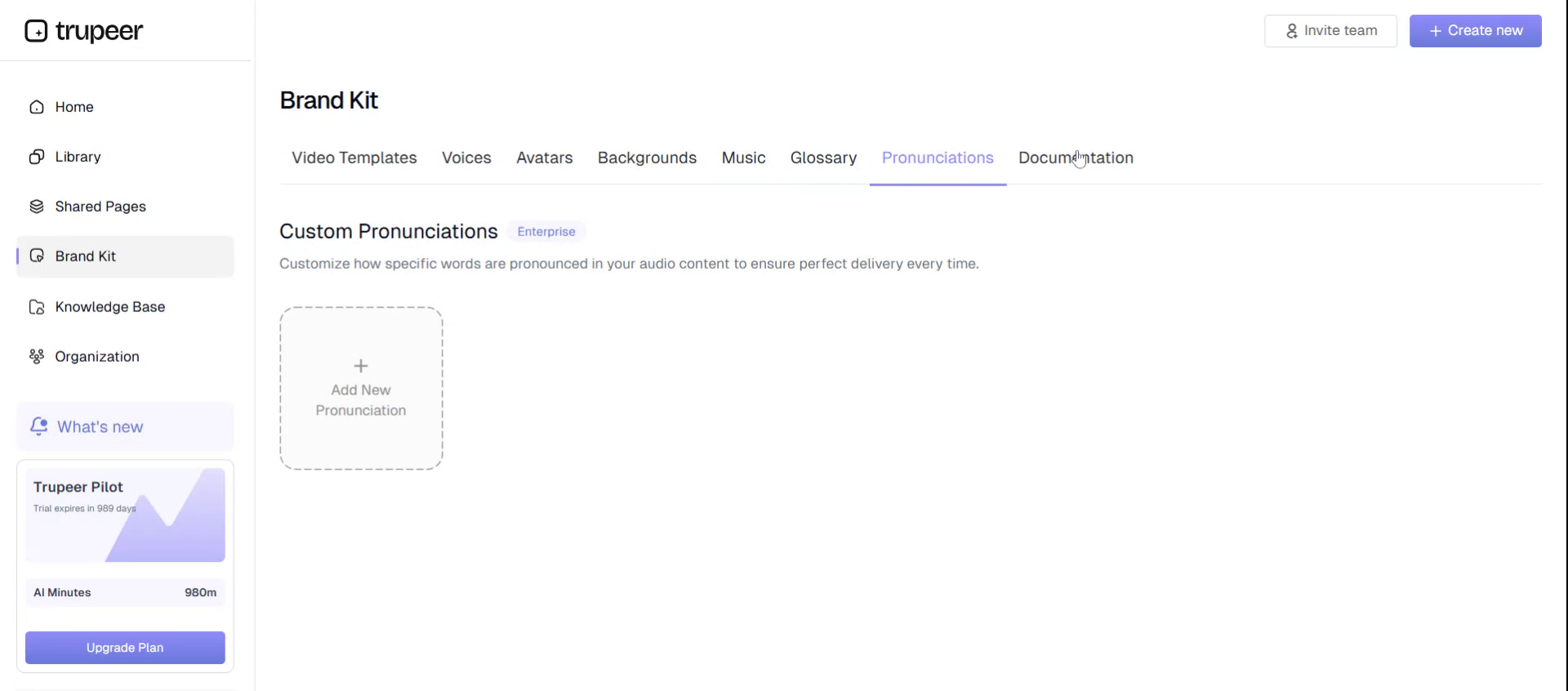
Step 5: Configure Glossary and Pronunciation#
Use the Glossary section to define specific terms and phrases that Troopier should recognize and handle consistently.
Then, use the Pronunciation section to fine-tune how certain words are pronounced within your videos.
Step 6: Create Documentation Templates#
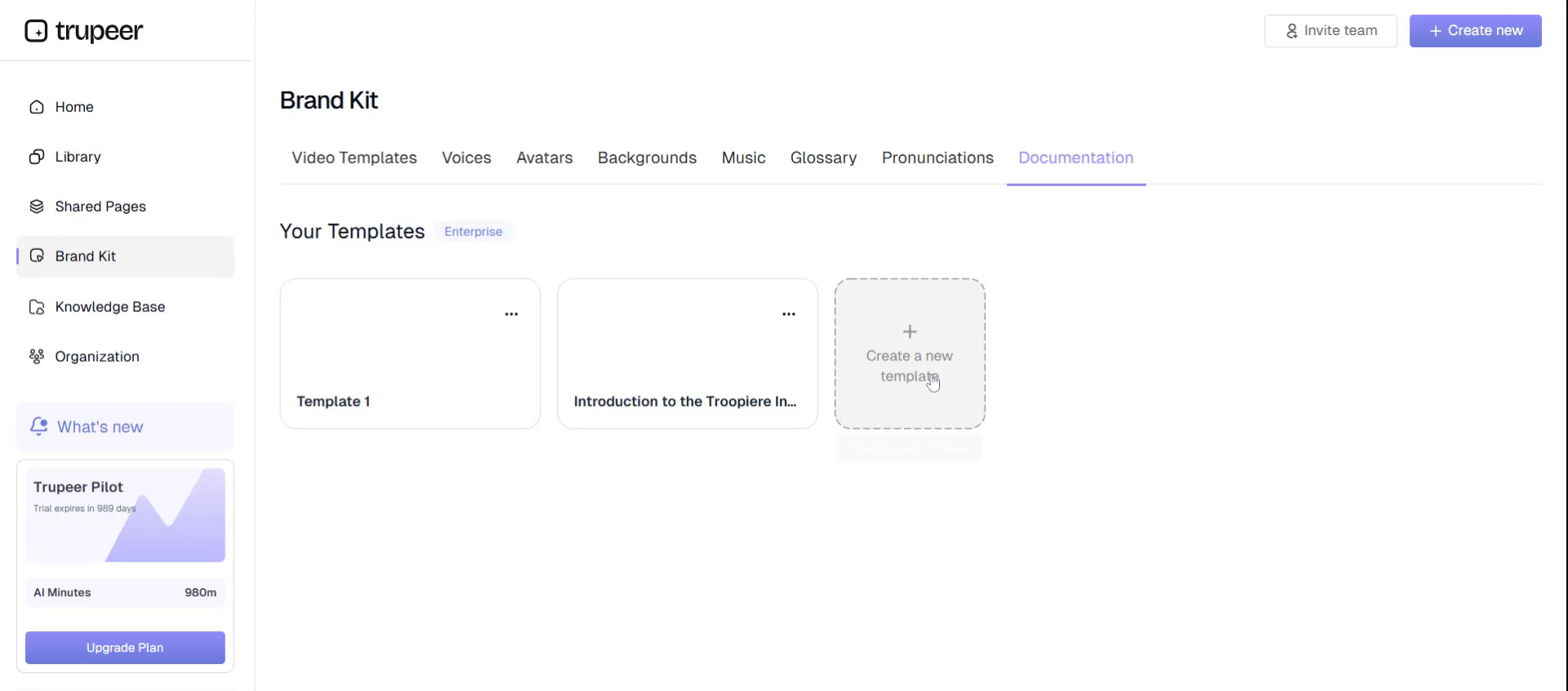
In the Documentation area, you can create your own documentation templates to standardize your content.
You can either:
- Upload an existing document to use as a template, or
- Create a new documentation template manually within Troopier
Step 7: Build and Use a Knowledge Base#
Open the Knowledge Base section to create a dedicated knowledge base for your organization.
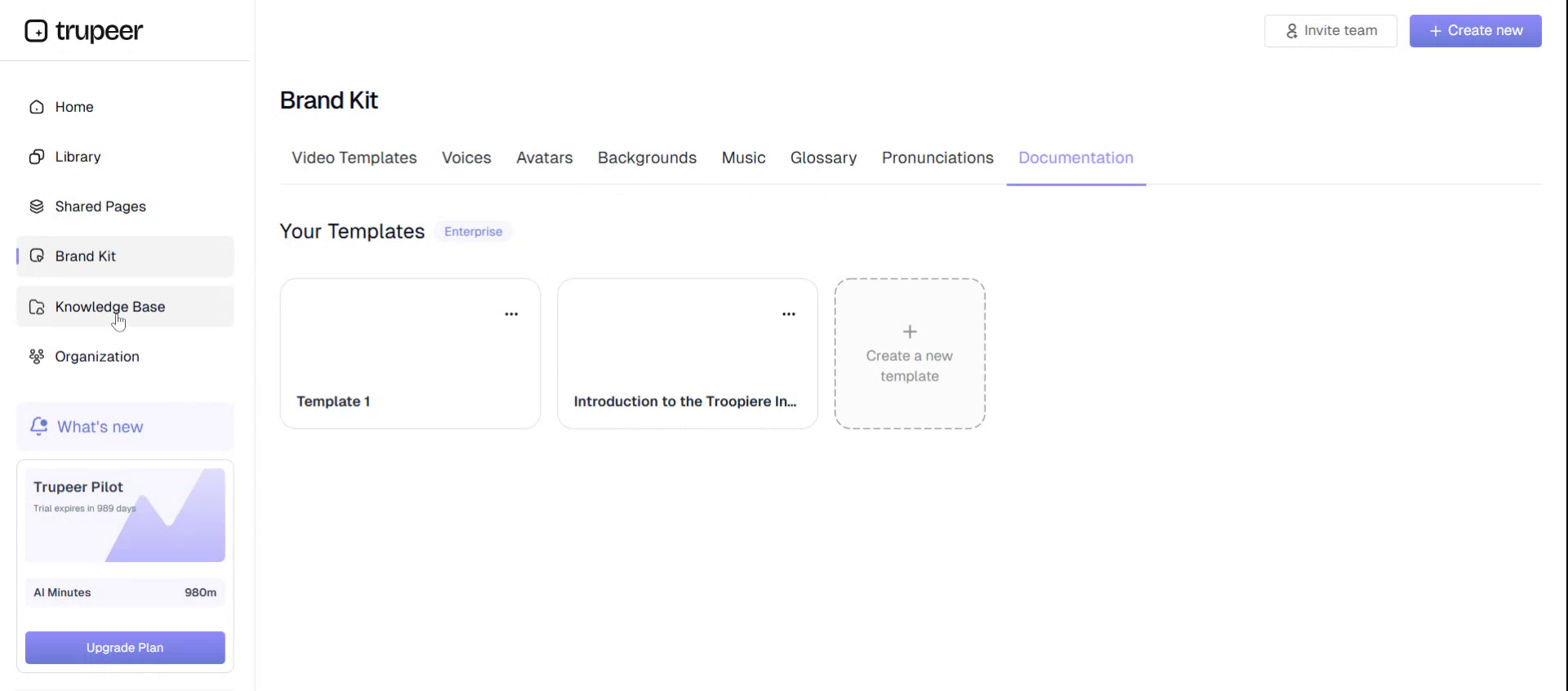
Here, you can:
- Create new knowledge base collections
- Add your videos to these knowledge bases for easy access and reference
Step 8: Manage Your Organization and Members#
Go to the Organization section to manage your team and access settings.
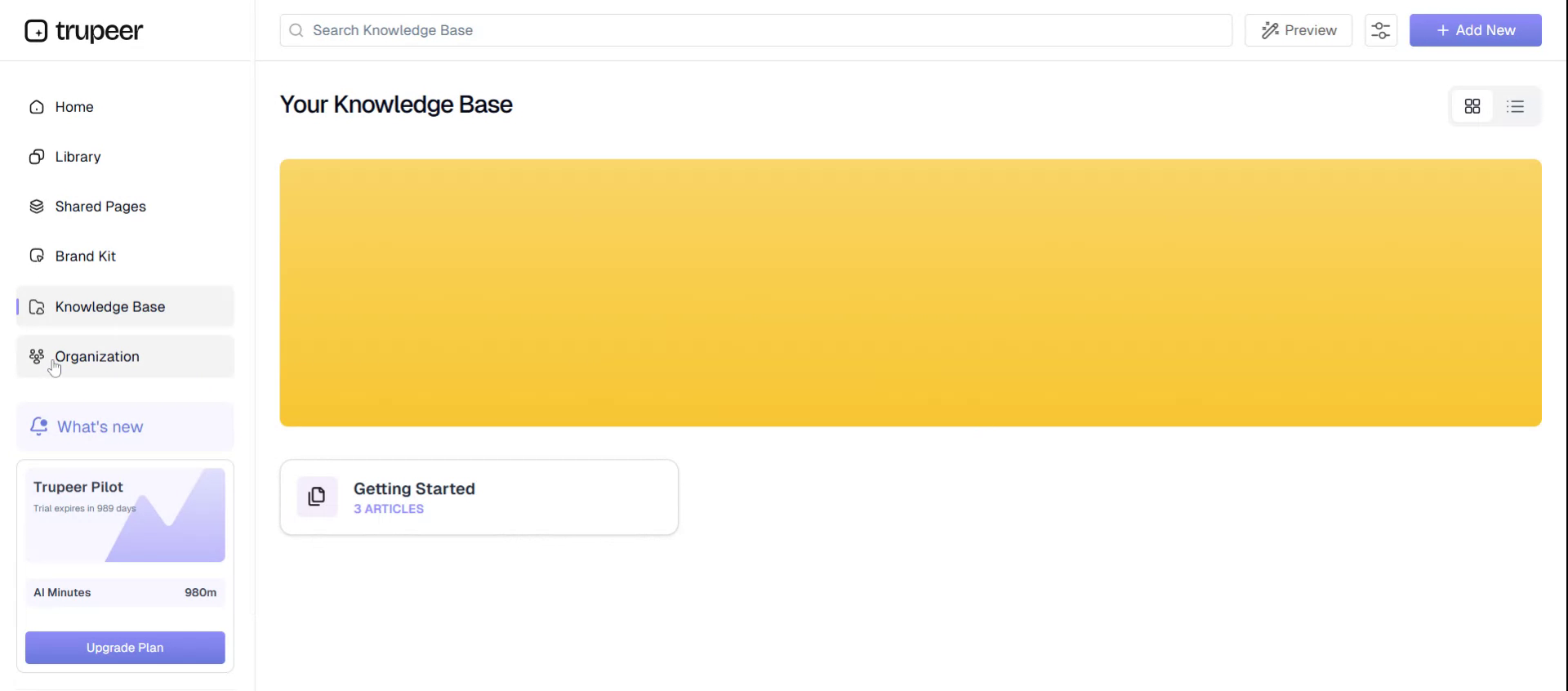
In this area, you can:
- Add people to your organization
- Invite and manage team members
- Control access to shared resources
Step 9: Return to the Homepage Overview#
From anywhere in Troopier, you can return to the Homepage to see your main video overview and quickly access the primary features described above.