Navigating the Trupeer Interface#
This document provides a high-level overview of the main sections on the Tutorture homepage, explaining what each area is used for so you can quickly understand where to manage content, branding, knowledge, and organization settings.
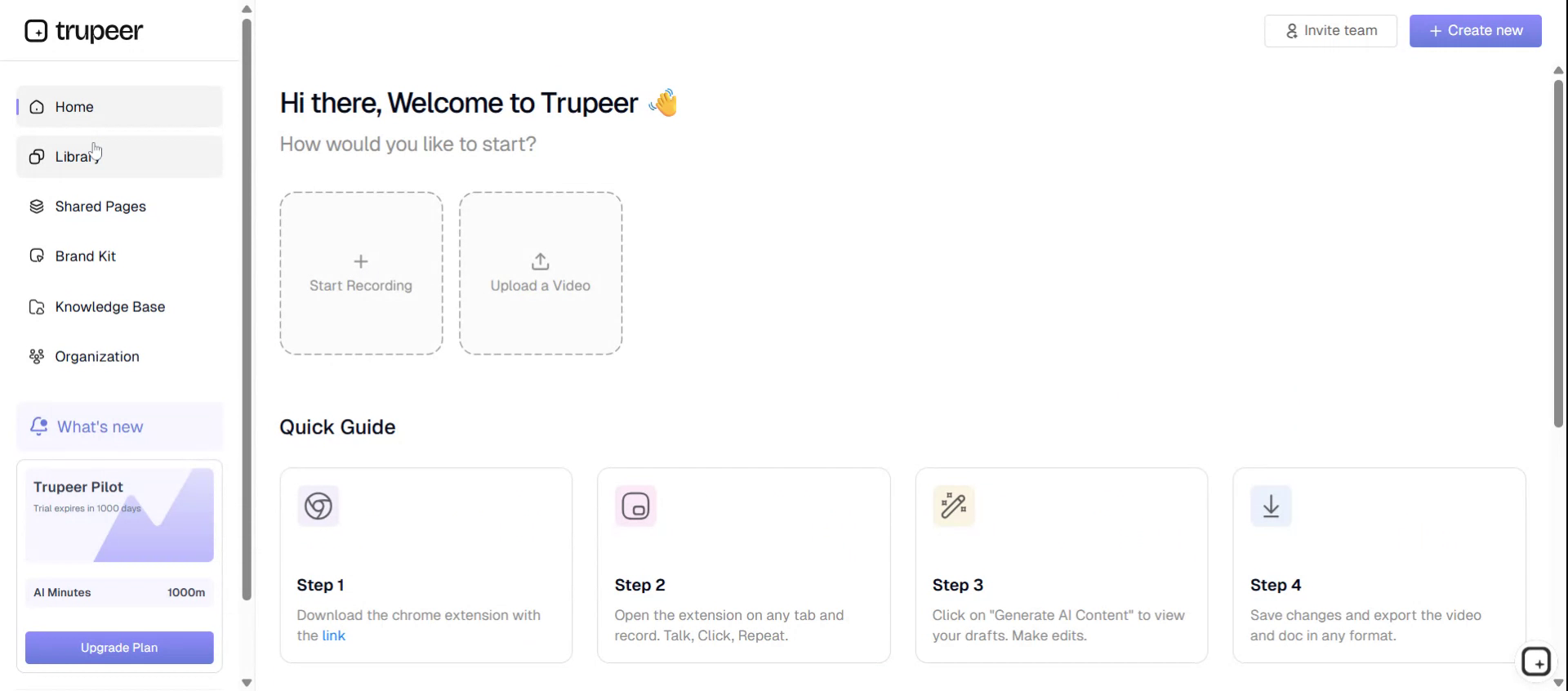
Step 1: Explore the Tutorture Homepage#
From the Tutorture homepage, you can access all major areas of the platform. Here, you can view step-by-step processes and either record new videos or upload existing ones for use within your projects.
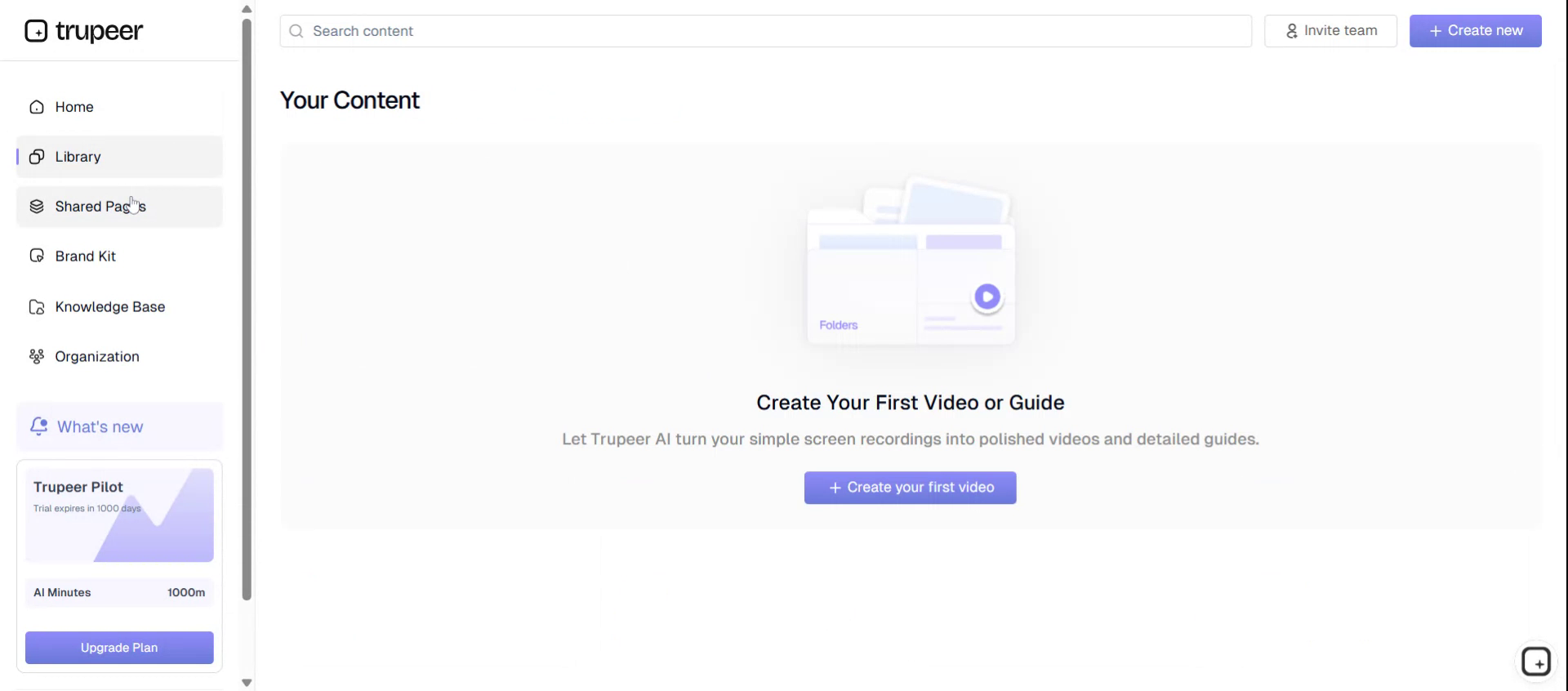
Step 2: Open and Review the Library#
Navigate to the Library section to view and manage all your stored content, such as videos and other media assets.
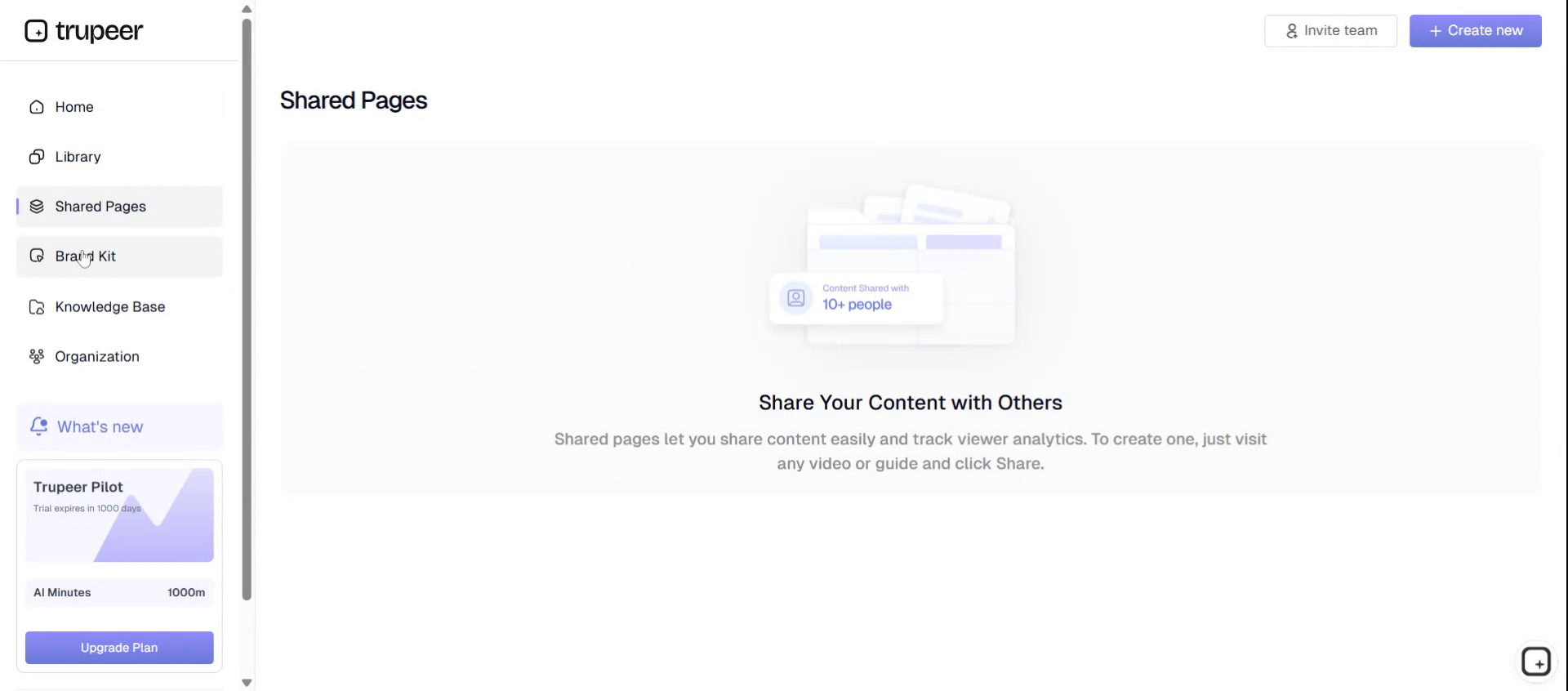
Step 3: Access the Share Pages#
Go to the Share Pages section to see and manage the pages you share with others, such as public or client-facing views of your content.
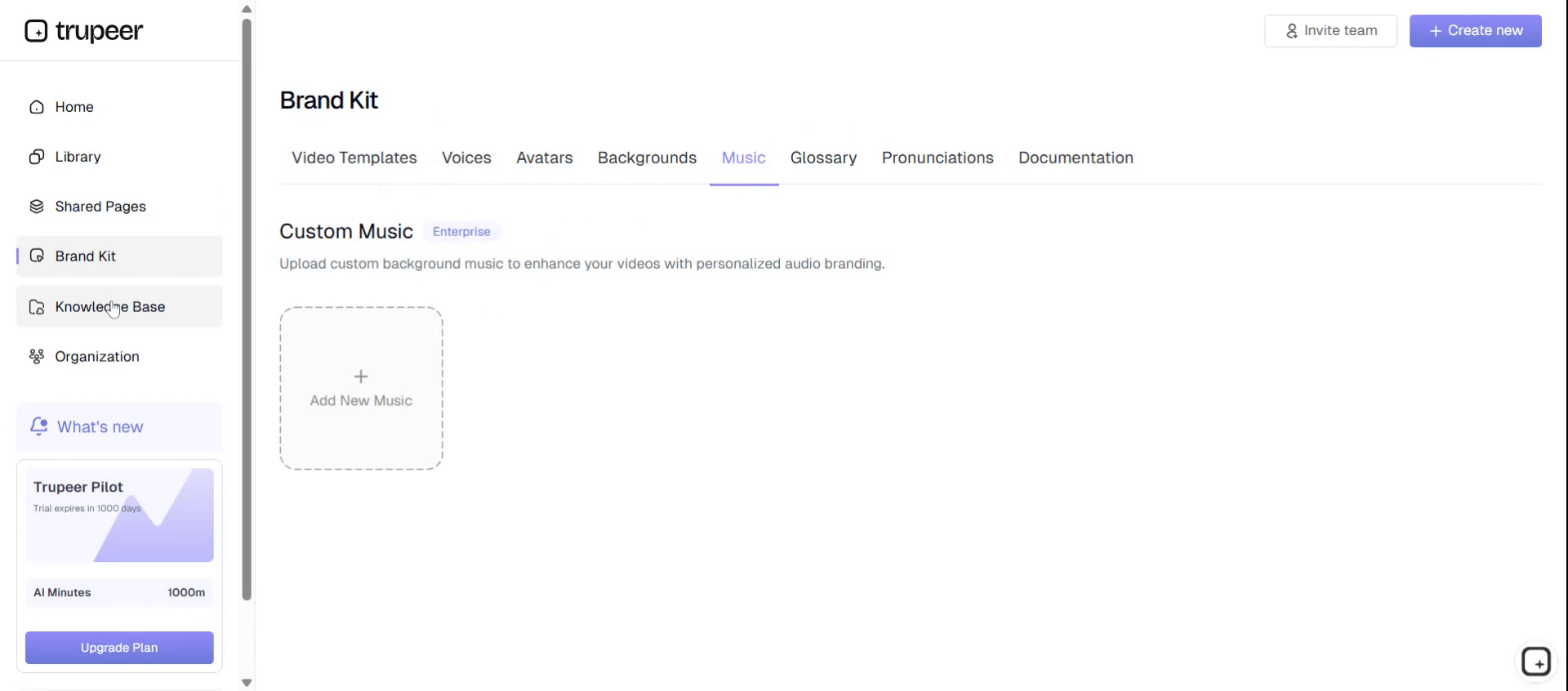
Step 4: Configure the Brand Kit#
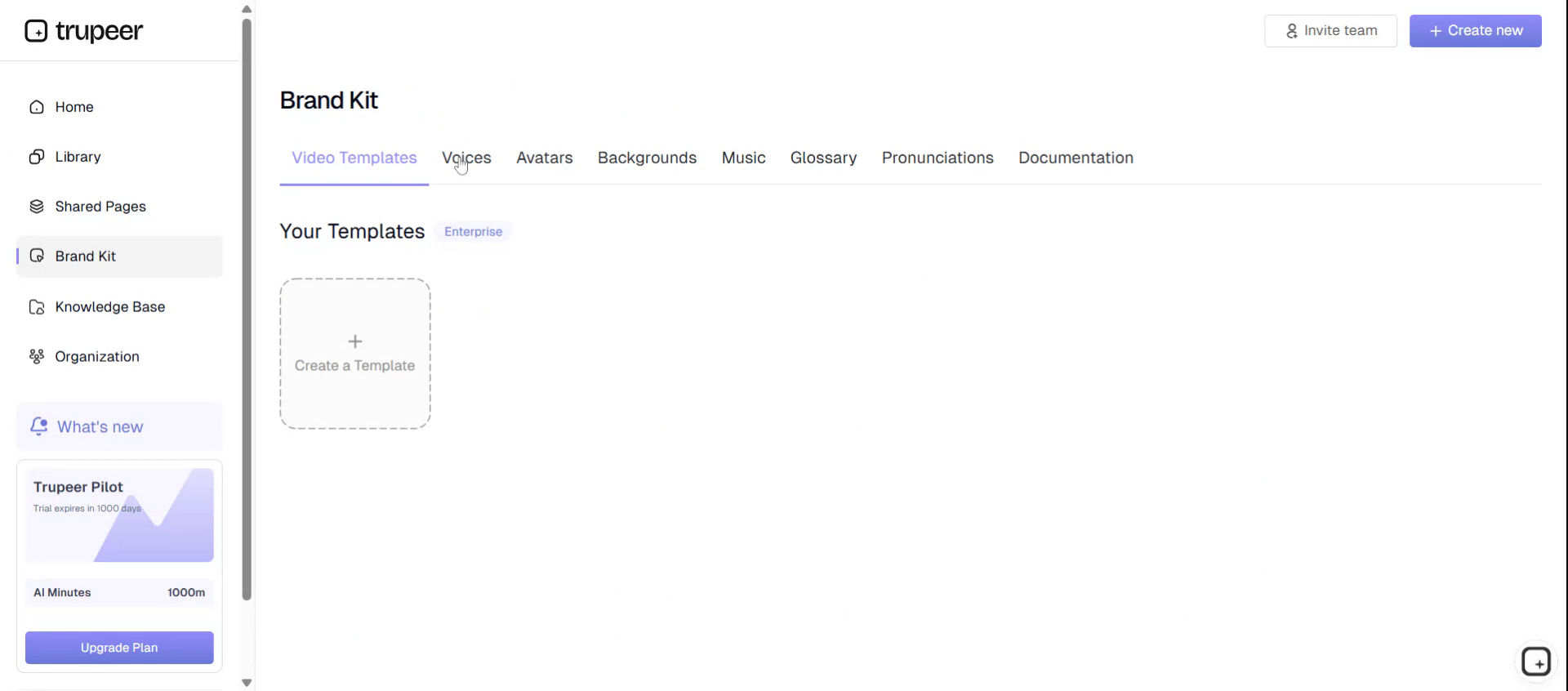
Open the Brand Kit to manage your branding elements, ensuring consistent look and feel across all your content.
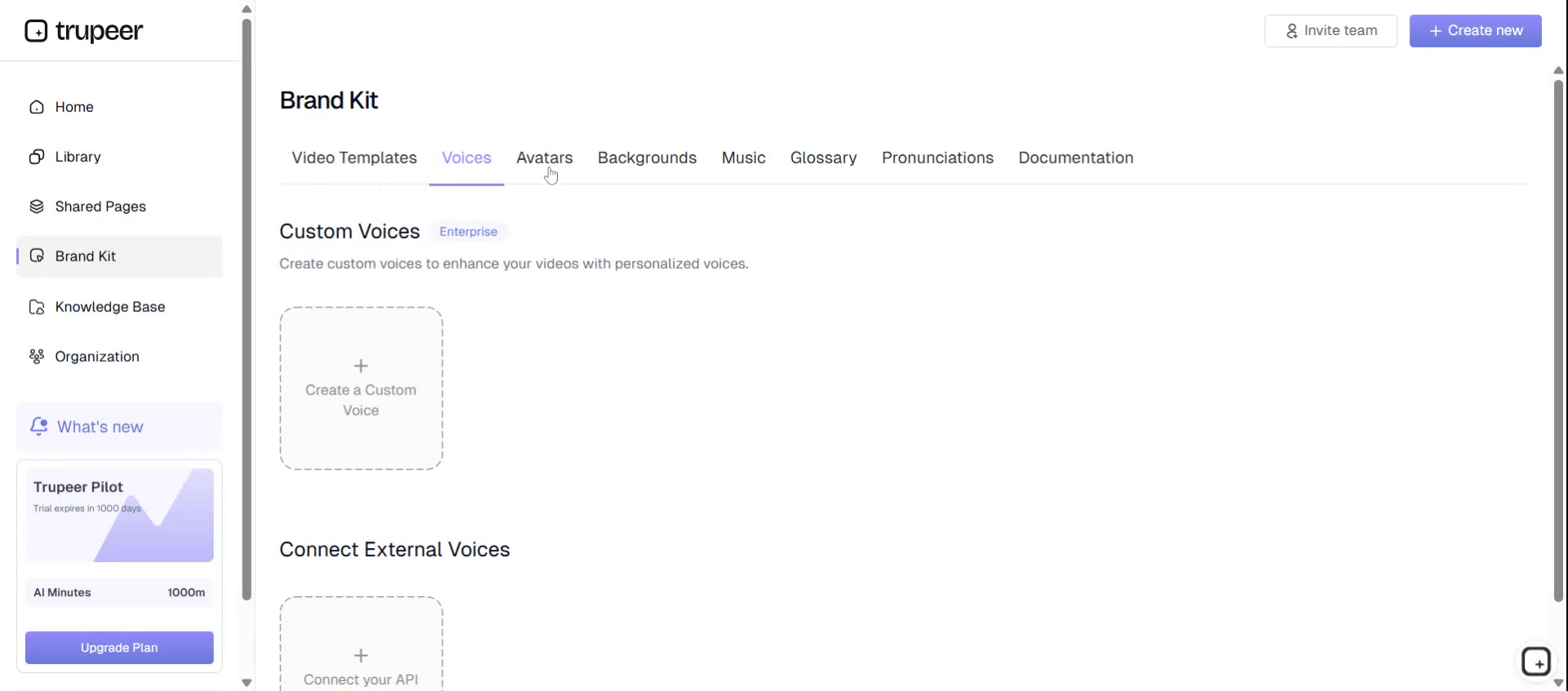
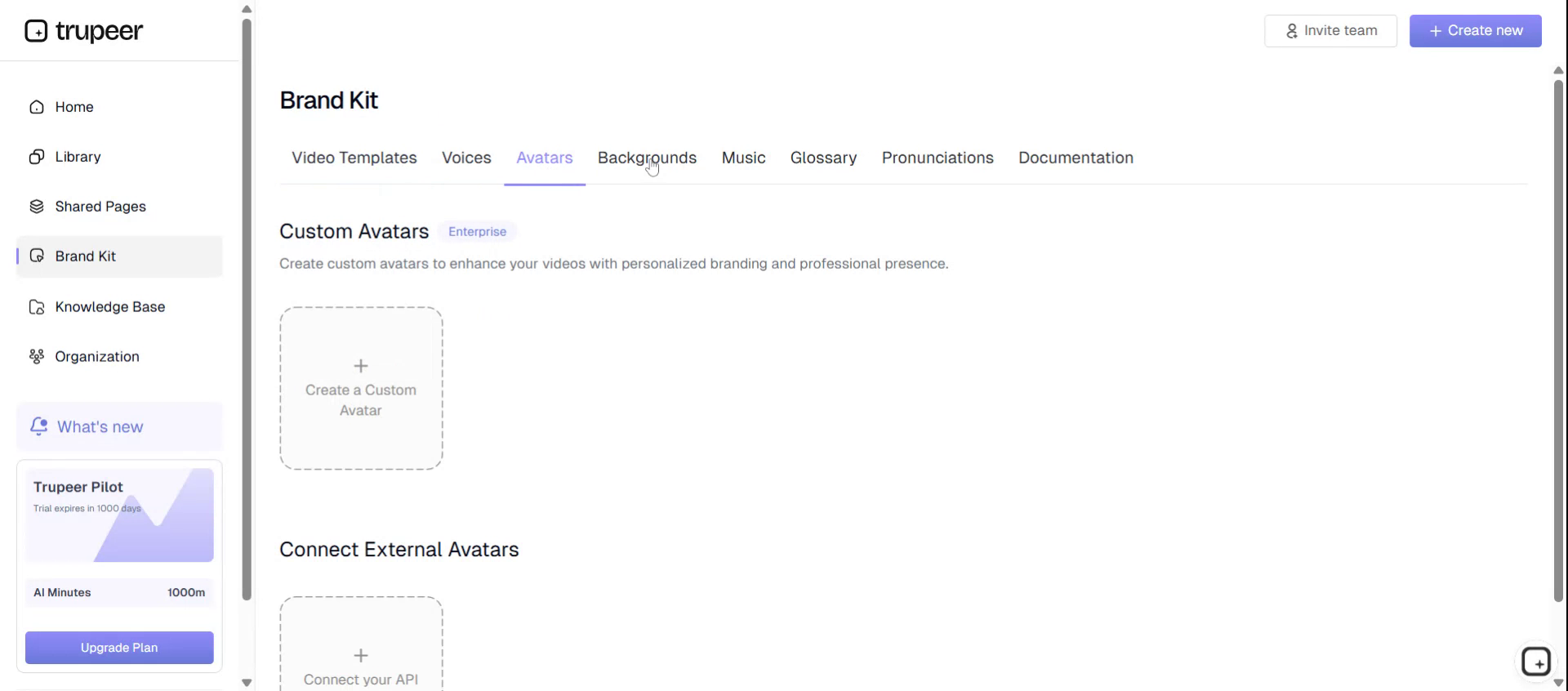
Within the Brand Kit, you can configure:
- Voices used for narration or voiceover.
- Authors to attribute content correctly.
- Backgrounds for visual consistency across videos or pages.
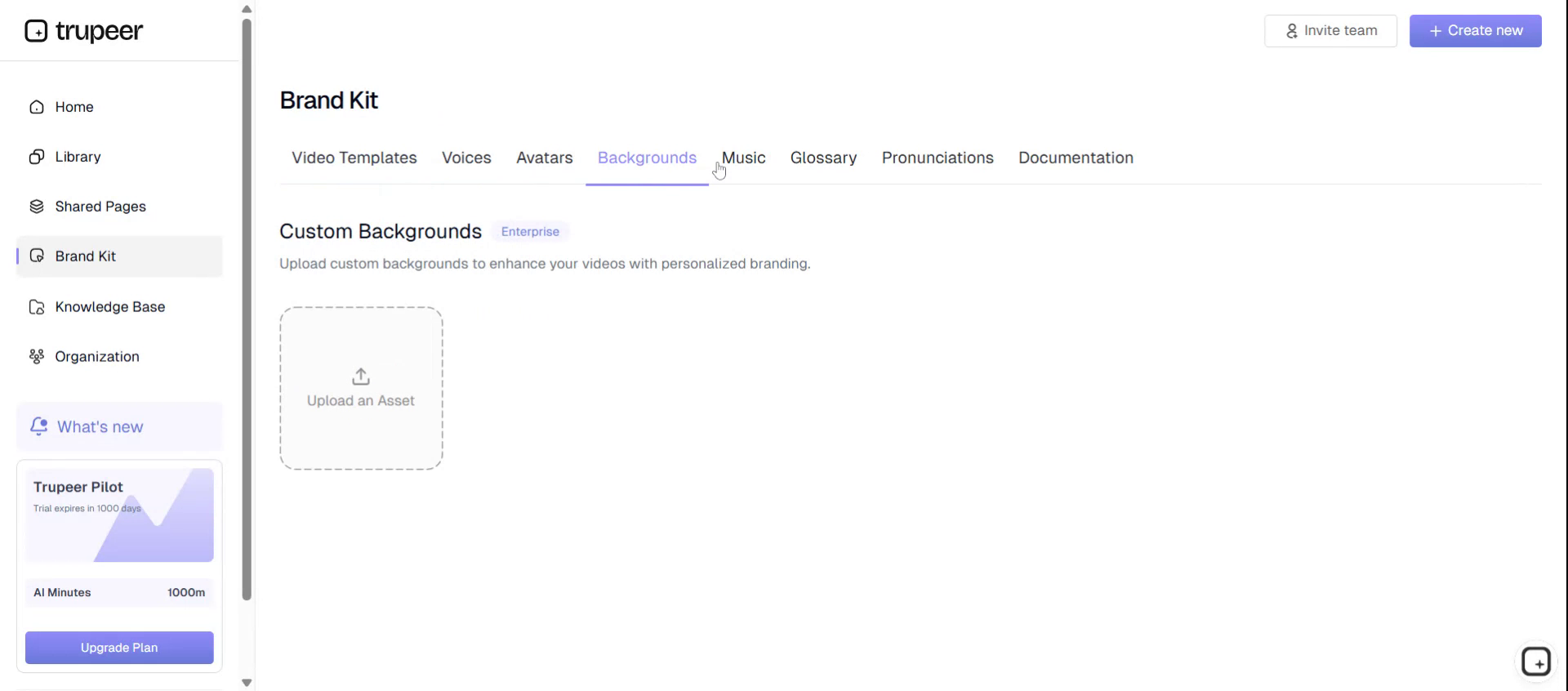
- Music and other media options to enhance your content.
Step 5: Create and Manage the Knowledge Base#
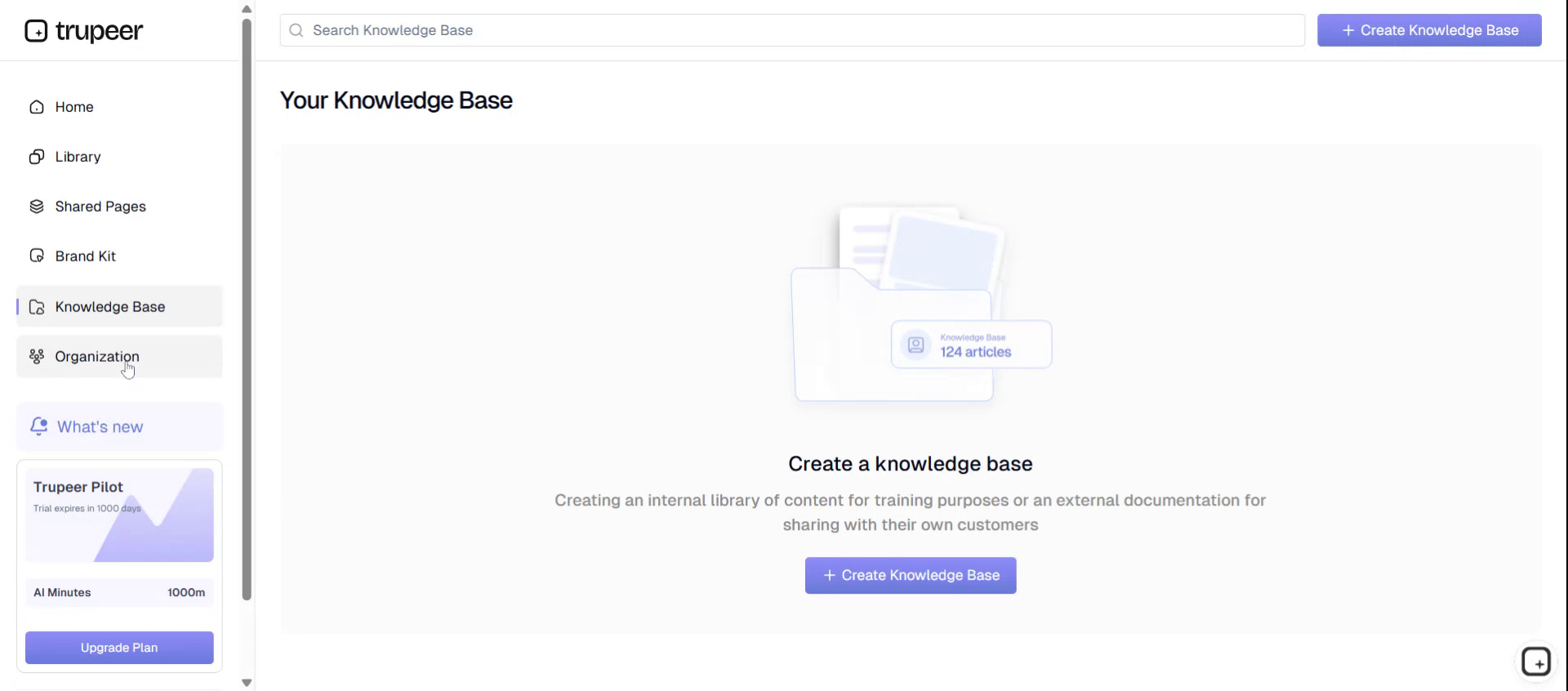
Navigate to the Knowledge Base section to create and organize your knowledge resources. Here, you can build structured information repositories that support your content and workflows.
Step 6: Manage Organization and Members#
Open the Organization section to manage organizational settings and view or configure the members in your organization, including access and roles as needed.